
If clock-in is enabled on your profile, you can clock in and out on your desktop, on your phone, or on a tablet in your workplace - whichever your company uses.
On your desktop
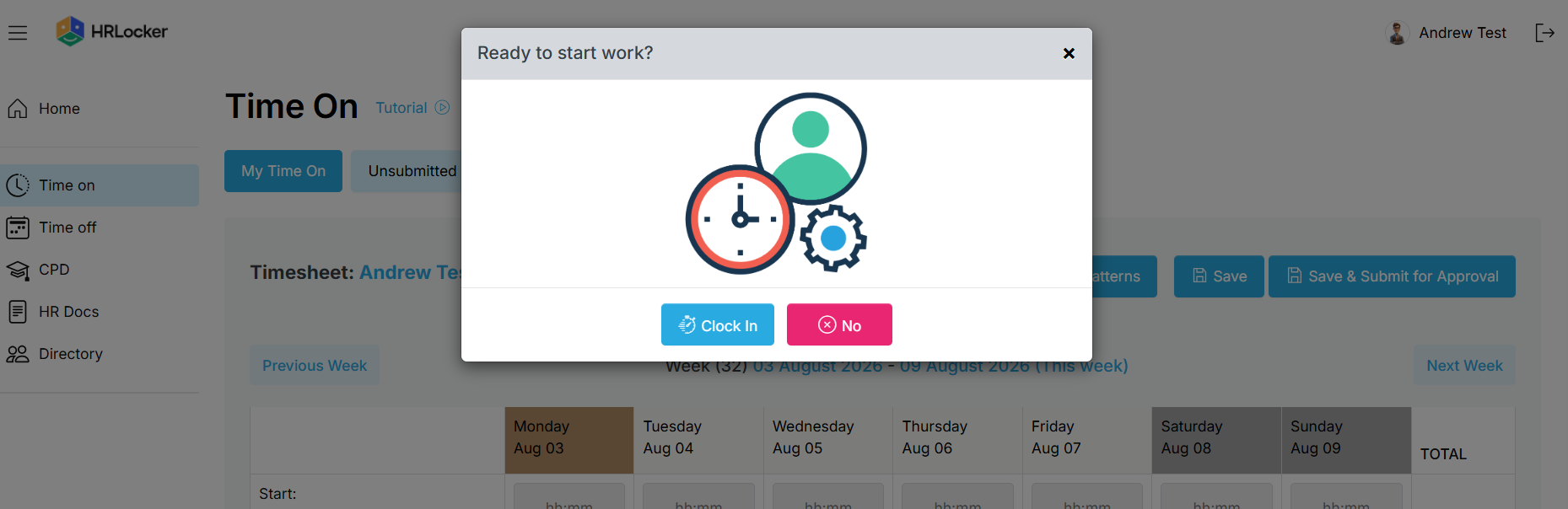
- When you log in to HRLocker, a Ready to start work? prompt appears. Click Clock In to start your day, or No to dismiss it.
- Your clock-in and clock-out times fill in your timesheet automatically.
- Your company can set rules around desktop clock-in, so exactly what you see may vary.
On your phone
- Use the HRLocker Time-On app and allow the location permission if asked. Your location is only recorded at the moment you clock in, clock out or take a break.
On the tablet
- Tablet clock-in uses a 4-digit PIN, assigned by your manager or admin. You only need a PIN if you clock in on the tablet.
- Forgotten it? Log in to HRLocker, click your own name on the banner and your PIN is on the settings page. Or ask your manager.
- Enter your PIN. The tablet takes your photo so your manager can validate the clock-in.
- “Welcome Back” means you've clocked in. “See you Later” means you've clocked out. If your PIN isn't recognised you'll see an error - just try again.
Breaks
- If your company requires it, clock out for your breaks and clock back in when you return - the break duration is recorded.
- Make sure you clock in and out correctly, so your breaks and working time are recorded accurately.
Location and network rules
- Your company may record your location if you clock in or only expect clock-ins from approved workplace networks.
- If you clock in from a network that isn't approved, the clock-in still works, but it's flagged with a warning.
Made a mistake?
- Forgot to clock in or out? Tell your manager - they can edit your timesheet.
- Add a note to the timesheet with an explanation.
- On the tablet, not sure whether you're clocked in? Enter your PIN and read the message: Welcome Back means you've just clocked in, See you Later means out. If that's wrong, enter your PIN again to correct it and let your manager know.