
If your company runs reviews through HRLocker, each review is scheduled for a date and time, and you complete your side in the Reviews section.
Your review timeline
-
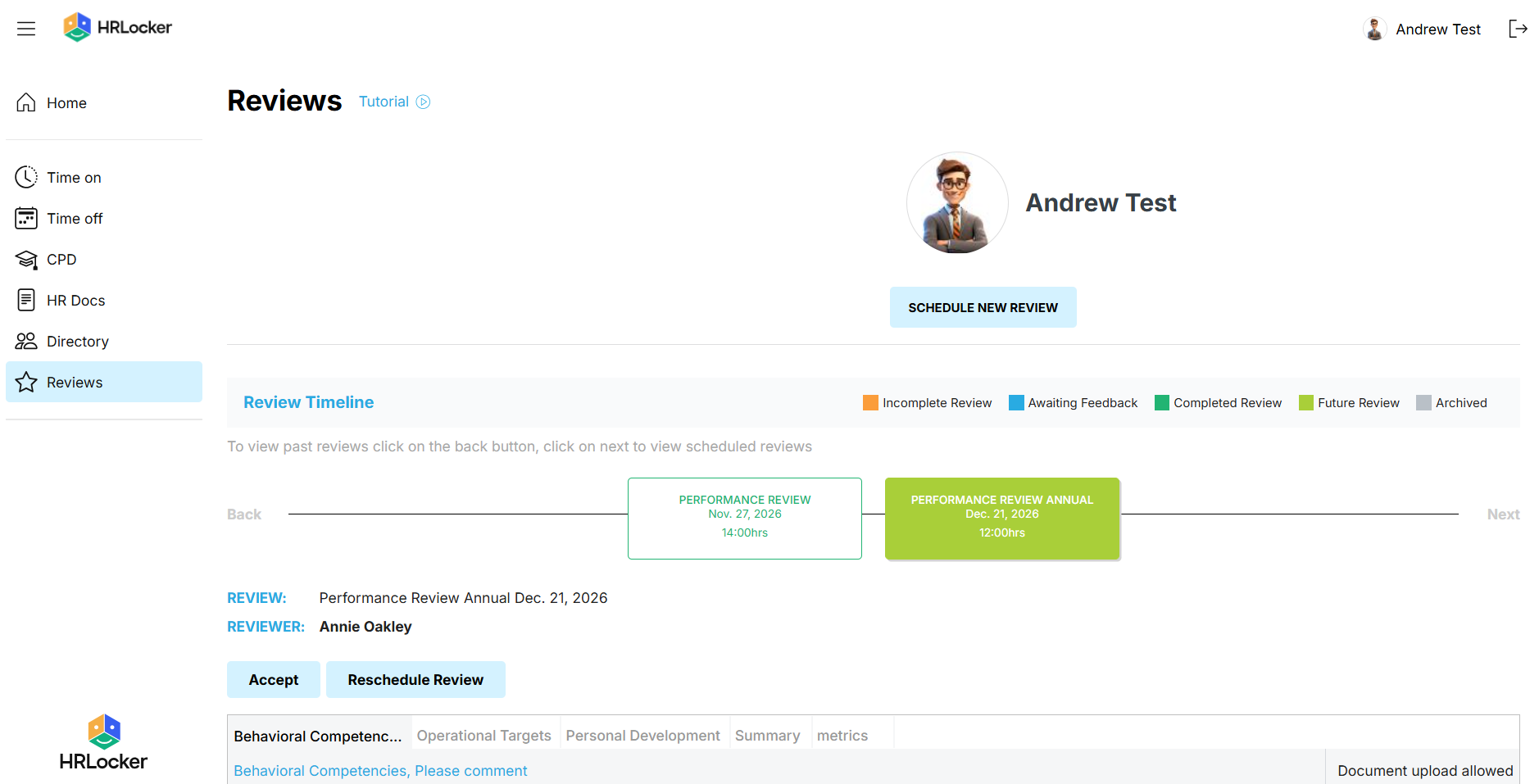
Open Reviews to see your review timeline. Use Back to view past reviews and Next to view scheduled ones.
-
Reviews are colour coded: orange for an incomplete review, blue for awaiting feedback, dark green for completed, light green for a future review and grey for archived.
-
Selecting a review shows its name, date and time, and your reviewer.
When a review is scheduled for you
-
Make sure to accept the review - click Accept. You can't complete a review you haven't accepted.
-
If the date or time doesn't suit, click Reschedule Review.
-
Before the review date, take some time to look through the review template that's been assigned, so you know what will be covered.
Fill in your side
-
Work through the areas marked Employee's Input.
-
Save as you go - you don't have to finish in one sitting.
-
Click Share to notify your manager of your review comments.
-
Complete becomes available once all mandatory sections are filled in and you've accepted the review.
What happens next
-
Your review shows as awaiting feedback while your manager adds their side, and moves to completed when the review is done.