
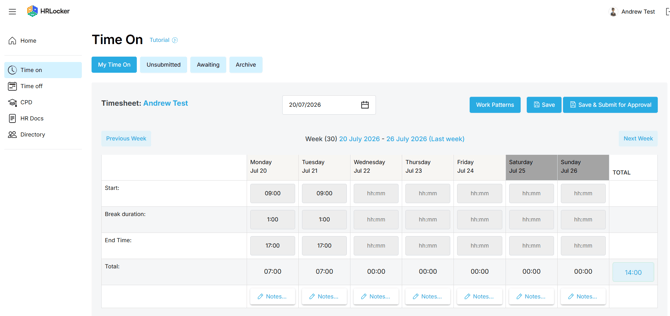
Your timesheets live in the My Time On section. If your company uses timesheets, this is where you record your hours each week.
Finding your way around My Time On
- My Time On opens on your current week's timesheet.
- Use Next Week and Previous Week to move around, or the calendar input to jump to a date.
- Four tabs organise everything: Unsubmitted (saved but not sent), Awaiting Approval (submitted, not yet approved), Archive (approved) and Work Patterns (the hours you're expected to work).
Fill in and submit your timesheet
- Enter your hours for each day. If you clock in and out, your times fill in automatically.
- Add a note if something needs explaining.
- Submit the timesheet at the end of the week. Your manager is notified, reviews it, and approves or rejects it.
Projects
Your manager may assign projects to you. Projects are separate from your timesheet, but you may be asked to record your hours against them.
- If required, enter the hours you spent on each assigned project (hh:mm) for each day.
- Your company may set rules linking the two - for example, your timesheet hours may need to match your project hours.
Project Management tasks
Also separate from your timesheet: if your company uses the Project Management module, you may have tasks assigned to you with due dates.
- Enter the hours you spent on a task in the box for each day of the week.
Good to know
- If you clock in and out, you can't edit your own timesheet. Ask your manager to make amendments.
- Submitted and Approved timesheets can't be edited either. A manager can reactivate one, which returns it to Unsubmitted for changes.
TOIL
If your company uses TOIL (time off in lieu):
- Hours over your standard working week on an approved timesheet are added to your TOIL balance.
- If negative TOIL is enabled and you submit fewer hours than your standard week, the difference is deducted.
- Your TOIL balance shows in Time Off, where you can book it like other leave.