
HRLocker includes functionality to manage employee retirement tracking and automated notifications. This guide covers how administrators and managers can configure retirement settings at both the office and employee levels.
Office-Level Configuration: Setting the Retirement Age

Adding the Retirement Age Field
-
Navigate to Office Settings.
-
The Retirement Age field is available on the Office Edit page.
-
This is a year and month input, both as whole numbers (e.g., 65 years, 0 months).
Who Can Edit: Only HRLocker Administrators and Managers with Settings permissions can view or modify this field.
Configuring Retirement Notification Reminders
Within the office settings, administrators can configure two automated email reminders to notify stakeholders before an employee’s retirement.
Reminder Settings
-
Reminder 1 and Reminder 2 each include a dropdown with the following options:
-
1 week
-
1 month
-
3 months
-
6 months
-
1 year before the retirement date
-
-
CC Email Field: Enter multiple email addresses separated by commas to include additional stakeholders in the notifications.
Employee-Level Configuration: Retirement Date Handling
Auto-Population
When the office has a Retirement Age configured and the employee has a Date of Birth (DOB) entered in the Personal tab:
-
The system automatically calculates the Retirement Date as the day before the employee reaches the specified retirement age.
-
The Retirement Date field is read-only and cannot be edited unless manual entry is enabled.
-
This auto-calculated date is used to trigger retirement notification reminders, provided a valid DOB is available.
If the employee does not have a DOB:
-
The system cannot calculate the retirement date.
-
The Retirement Date field remains blank and read-only.
-
No retirement notifications will be sent unless a retirement date is manually provided.
Manual Entry
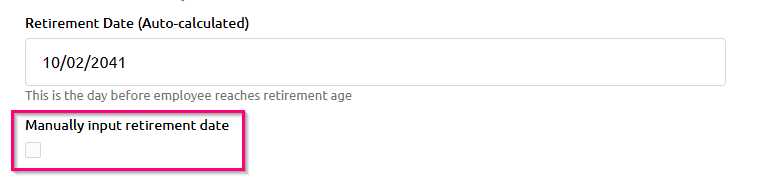
If the employee's DOB is missing or if an override is needed:
-
Managers with directory permissions or administrators can enable manual entry by selecting the "Manually enter retirement date" option.
-
Once enabled, the Retirement Date field becomes editable, allowing a custom date to be entered.
-
This manually entered date is used to trigger notification reminders, regardless of whether a DOB is present.
-
Manual dates can be entered for any employee, even if no Date of Birth is recorded.
Employee Office Transfers
When an employee is transferred to a different office:
-
The retirement date will be recalculated using the new office's retirement age.
-
This automatic recalculation only applies if the retirement date is not manually set.
Manual Entry and Audit Trail
When an administrator or manager chooses to manually enter or override the retirement date:
-
An audit trail is created, recording:
-
Who made the change
-
When the change was made
-
-
This information is accessible in the Retirement Age Report available under Reports > Employees.
Editing Permissions
Only Admins and Managers with Directory permissions can:
-
Edit the retirement date manually.
-
Override the auto-calculated date, if required.
Notification Triggers
-
If a manual retirement date is entered, that date is used to trigger all retirement-related reminders.
-
If the date is auto-calculated, reminders are based on the calculated retirement date from office settings.
-
If the retirement date is blank, no notifications will be triggered unless a manual date is entered.