
The Payroll Hours and TOIL Report gives you one row per employee showing what they worked, how much TOIL they earned, how many hours are left once that TOIL is taken off plus any leave, project, bonus or benefit activity you have mapped to a payment ID.
The payroll report always reads from each employee’s current record, so it gives you an accurate picture as at the day you run it. That does mean a report run today for an earlier period will use today’s standard working week rather than the one that applied back then. We’d always recommend saving each payroll file as you run it, so you keep the figures exactly as they stood for that pay period.
Who can run this report
Payroll has to be enabled for your company. You also need to be a payroll manager with Reports permission for the Payroll module. Setting up the payment IDs the report depends on is a payroll manager job too. If the Payroll section is not under Reports, contact support to check whether Payroll is enabled for you.
Before you start
- Enable TOIL in the Employee Directory settings of each employee who should earn it, then set their standard working week.
- Decide which of them have negative TOIL enabled. This changes how a short week is reported.
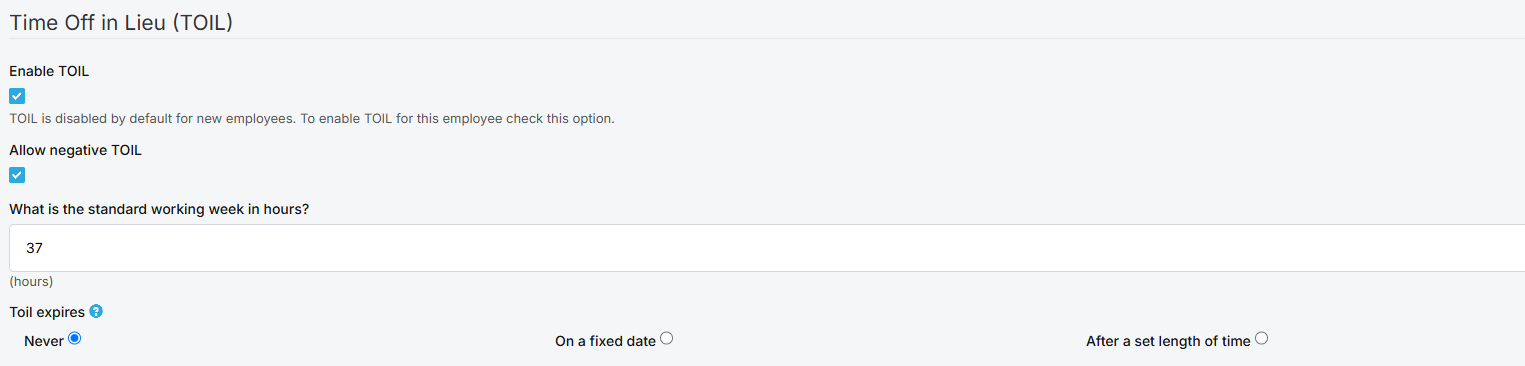
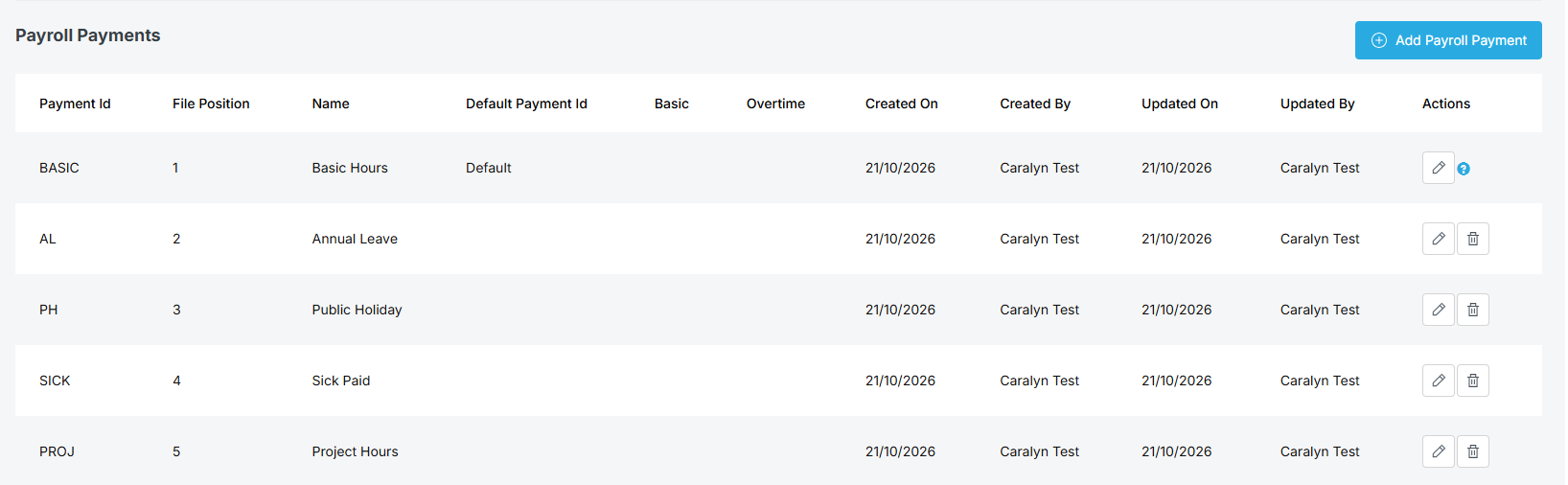
- Link a payment ID to every leave type, project, bonus or benefit you want reported in its own column. Anything without one stays inside the default column.
- Set a File Position on each payment ID to control the column order, then mark one as Is Default for the office. Its name becomes the heading of the column holding hours after TOIL.
- Payment IDs are created and linked in Payroll Settings.
Running the report
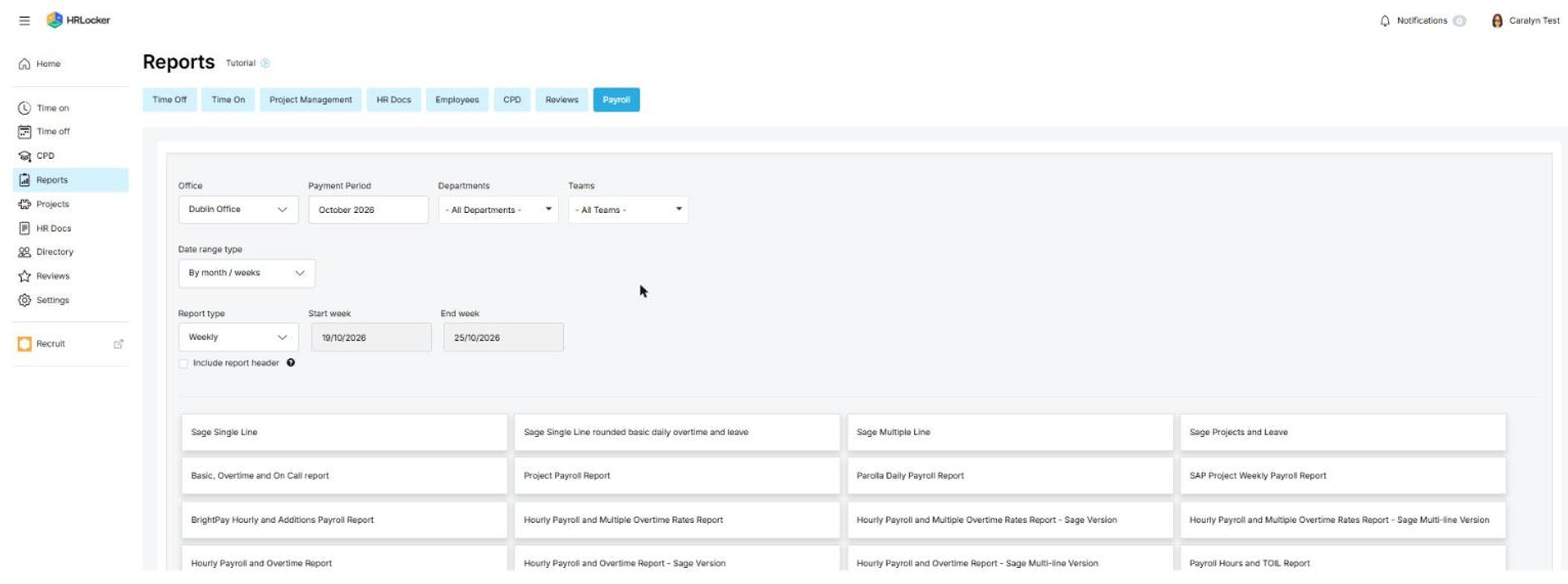
- Go to Reports, then Payroll.
- Choose the office. Payment IDs are set per office, so the report runs for one office at a time.
- Choose the departments, teams, report type and period.
- Select Payroll Hours and TOIL Report and download it.
What is in the file
Every row is one employee. The first group of columns is the same for everyone. The rest are built from your payment IDs, in File Position order.
The fixed columns:
- Contracted Hours comes from the employee Terms of Employment. It is always filled in.
- Standard Working Week is the figure TOIL is measured against, taken from the Employee Directory settings.
- Negative TOIL Enabled shows which shortfall rule applied to that row.
- Total Timesheet Hours is the approved timesheet hours in the period, before TOIL is taken off.
- Earned TOIL is the approved timesheet hours measured against the standard working week, week by week.
- Number of Approved Timesheets is how many timesheets in the period were approved.
The payment ID columns:
- The default payment ID column holds Total Timesheet Hours minus Earned TOIL. It takes its heading from whichever payment ID is marked Is Default for that office.
- Annual Leave and Public Holiday hold holiday hours, split by whether the leave entry comes off the annual leave allowance.
- Each leave type, project, bonus or benefit with a payment ID gets a column of its own. Leave and project columns carry hours. Bonus and benefit columns carry amounts.
- Anything without a payment ID has no column and stays inside the default column.
- There is no total column, so nothing in the file is a sum of the other columns.
Which periods give an accurate TOIL figure
TOIL is a weekly comparison, so it can only be calculated on a date range made of complete Monday to Sunday weeks. Run the report on Weekly and Earned TOIL is exact. Run it on Monthly or on a date range that does not line up with whole weeks and the Earned TOIL column is left blank, because a part week measured against a full standard working week reads as a shortfall the employee never had. Every other column stays accurate on any range.
How Earned TOIL is calculated in this report
For each Monday to Sunday week, HRLocker compares the approved timesheet hours against the employee standard working week. The difference is the TOIL earned. On a range covering several weeks, each week is worked out on its own and the results are added together.
The calculation uses the current standard working week, meaning the value sitting on the employee record at the moment you run it. HRLocker does not store previous values.
So if an employee standard working week has changed, re-running an earlier period will not give you what you reported at the time. Take someone who moved from 39.00 hours to 35.00 in June. Re-run a March week today and their March timesheet is measured against 35.00 rather than the 39.00 that actually applied. Their Earned TOIL comes out 4.00 hours higher than it did in March. The hours reported against the default payment ID drop by the same 4.00.
Run and save your payroll reports as you go. The file you downloaded at the time is the record. A re-run after a contract change is not.
Earned TOIL is recalculated from the approved timesheets in the range, so it is not the employee TOIL balance and will not always match it. That is expected rather than a fault.
Payroll rounding rules and payroll break settings are not applied by this report. Raw timesheet hours are used throughout and breaks come from the work pattern.
Why reported hours can be higher than the timesheet
The default payment ID column is Total Timesheet Hours minus Earned TOIL. If negative TOIL is enabled for an employee, a short week gives a negative Earned TOIL figure. Subtracting a negative adds.
Take a 39.00 standard working week with negative TOIL enabled and three weeks of 44.00, 39.00 and 32.00. Earned TOIL is -2.00, Total Timesheet Hours is 115.00 and the default column is 117.00. The employee was 7.00 hours short in week three. Negative TOIL enabled means that shortfall is covered from their TOIL bank rather than coming off their hours. With negative TOIL enabled, the default column always comes out at the standard working week times the number of weeks.
Without negative TOIL, a short week contributes 0.00 instead and the employee reports the hours they actually worked. The Negative TOIL Enabled column shows which rule applied on each row.
How holidays appear
The leave entry on the employee decides the column, not where the holiday was created. If it is flagged to come off their annual leave allowance it is reported under Annual Leave. If it is not, it goes under Public Holiday. If the employee has no entry for that day, nothing appears in either column.
- A deductible office holiday appears under Annual Leave. One without that tick appears under Public Holiday.
- An imported public holiday appears under Public Holiday unless it has been ticked as deductible.
- A half day is half that day work pattern hours. If two half day holidays share a date, each half follows its own rule.
Office holiday entries are created when the holiday is saved, for the staff in that office at the time. Someone who joins or moves office afterwards has no entry, so the day does not appear for them.
Leave, projects, bonuses and benefits
- Leave and projects are reported only if a payment ID is linked to them. Project hours also need the timesheet for that week approved.
- Leave hours are the work pattern hours for that day, net of the work pattern break. Leave booked on a non working day shows no hours.
- If populate times on leave is enabled, leave hours appear in both the default column and the leave column. This is intended. There is no total column, so nothing in the file double counts.
- Bonuses and benefits appear once if they have a payment ID and an effective date inside the period. These columns carry amounts rather than hours.
- If several things share a payment ID, their values are added together into that one column.
Blank cells and zeros
- Standard Working Week, Negative TOIL Enabled and Earned TOIL are blank together if the employee is not on a TOIL scheme. Contracted Hours is still filled in, because it comes from Terms of Employment.
- Earned TOIL of 0.00 means the employee is on a scheme and earned none this period.
- Total Timesheet Hours blank means no approved timesheet. 0.00 means an approved timesheet with no hours.
- Number of Approved Timesheets is never blank. 0 means none were approved.
Troubleshooting
- Earned TOIL is blank for everyone: the date range is not made of whole Monday to Sunday weeks.
- Earned TOIL is blank for one person: TOIL is not enabled for them in their Employee Directory settings.
- The default column is higher than Total Timesheet Hours: negative TOIL is enabled for that employee and their Earned TOIL is negative.
- An old period no longer matches what you reported at the time: the standard working week has changed since.
- A leave type, project or bonus has no column: no payment ID is linked to it.
- A holiday is in the wrong column: check whether the leave entry is flagged to come off the annual leave allowance.
- The Payroll section is missing from Reports: check you are a payroll manager, then contact support to see whether Payroll is enabled.