
Welcome to HRLocker. Your company uses it to manage time off, working hours, documents and training. This guide covers your first log in and the few things worth setting up on day one.
Log in for the first time
- Look out for your invitation email. It arrives when your account is created. If you can't find it, check your spam folder or ask your manager to re-send it.
- Follow the link in the email and set your password.
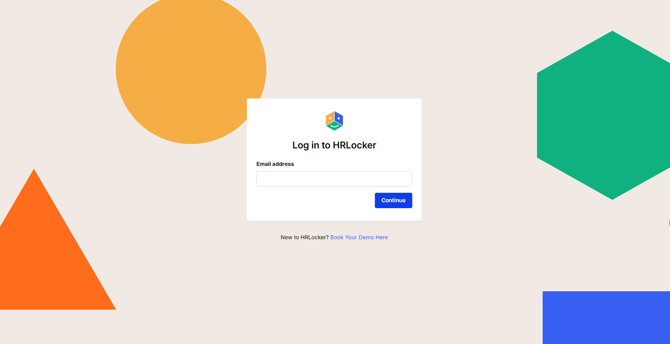
- From then on, log in at login.hrlocker.com/SignIn with your email address.
Set up your profile
- Check your personal details are correct, including your contact details and home address.
- Add your emergency contacts on the Emergency Contacts page, at the bottom of your Summary page.
- Add a profile photo if you like. See Managing your profile for the full details, including bank information.
Check your leave and hours
- Open Time Off to see your annual leave entitlement. If anything looks wrong, talk to your manager or HR.
- Open Time On to check your timesheet and working hours, if your company uses them. Your hours may be pre-filled; tell your manager if they're not right.
Read and sign your documents
- Open HR Docs and read anything waiting for you. Essential documents need to be read and signed. See Reading, signing and finding your documents.
Forgotten your password?
- Click Forgot Password on the login page and enter your email address.
- You'll be emailed a temporary password. Check spam if it doesn't arrive.
- Log in with the temporary password and you'll be asked to create a new one.
- Passwords must be 8 to 20 characters, with at least one lowercase letter, one uppercase letter, one number and one special character from @$!%*?&.